
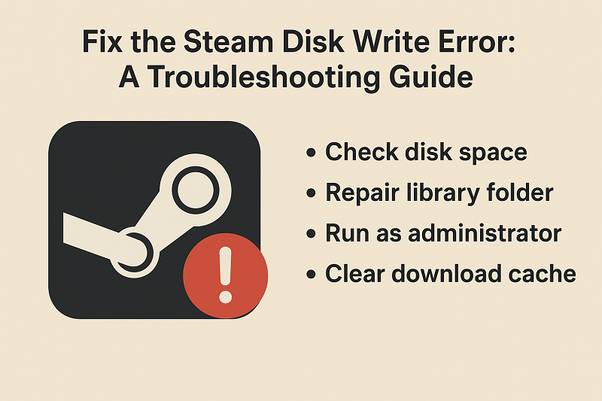
It is one of the most annoying experiences of being a PC gamer and not being able to play because of some technical failure. The Disk Write Error Steam is a typical yet disruptive problem that stops the process of installing games, updating them, and even launching them. Likewise, a Disk Read Error Steam may stop the games to load correctly. Such errors show that there was an error in communication between the Steam client and your computer drive storage. Luckily, the manner of solving Disk Write Error Steam issues would often be very easy to learn and also you may often solve it yourself within a couple of systematic methods.
What Causes Steam Disks Write and Read Errors?
Such errors are usually indicative of a software or permission clash and do not indicate a sure sign of the failing hard drive. The Disk Write Error Steam happens when Steam is unable to write new game files or updated game files to your disk, whereas the Disk Read Error Steam happens when it is unable to access the existing game files. Examples of common perpetrators are the lack of enough storage capacity, corrupted files on the local drive, antivirus activity, or improper permissions on the Steam software.
A Step-by-Step Guide on How To Fix Disk Write Error Steam
These solutions have been tested and should be considered one at a time before thinking of taking drastic action such as reinstalling Steam. They discuss the most common causes and can easily give a fast solution.
- Check Your Space: The easiest reason is usually a full drive. Go to your Steam library folder and make sure that you have plenty of free space – at least 10-20 GB on top of the size used by the game itself.
- Run Steam as an Administrator: This provides Steam with high permissions that it might require to write to secured directories. The steam is a shortcut to which one should right click and choose Run as administrator. In case this corrects the error you can set Steam to always run with these permissions in its properties.
- Clear Download Cache: There is a broken download cache that can interfere with file functionality. In the Steam client, select Settings then Downloads then click Clear Download Cache. You will then have to reenter Steam.
- Check Game file integrity: This is an important utility and verifies the game files that you have installed with the servers of Steam and replaces those that are corrupt or missing. Right-click the game in your Library, then under Properties then Installed Files and click on the integrity of game files.
- Test Your Antivirus and Security Software: Antivirus software which is too aggressive might quarantine or block the file functions of Steam. Disabling your antivirus program temporarily or, preferably, adding your primary Steam directory and the game folder to it would be an excellent choice.
- Change Your Download Region: Sometimes the problem might be associated with your connection to a particular content server of Steam. Select Settings and go to Downloads and change the Download Region to a different location and restart Steam.
Advanced Solutions for Persistent Errors
Should the simple methods fail, the sophisticated techniques can deal with more profound conflicts of the system.
- Check the disk: Check your Windows files by running the Windows utility; chkdsk. Start the Open Command Prompt as an administrator and enter chkdsk /f /r X: (instead of X use your Steam drive letter).
- Check Your Drive Health: This is a free program that allows you to check the S.M.A.R.T. health of your hard disk or SSD using programs such as Crystaldiskinfo. Disk Read Error Steam may occasionally be the manifestation of a malfunctioning drive in its initial stages.
Although most Steam errors can be solved by these steps a persistent Disk Read Error Steam can be a sign of underlying file system or hardware issues that can result in data loss. To recover important files outside your game library, trust Datarecovee which is a brand with a lot of trust and the best data recovery software and service provider of data recovery, email recovery, database backup recovery and conversion.






Leave a Reply