
Introduction
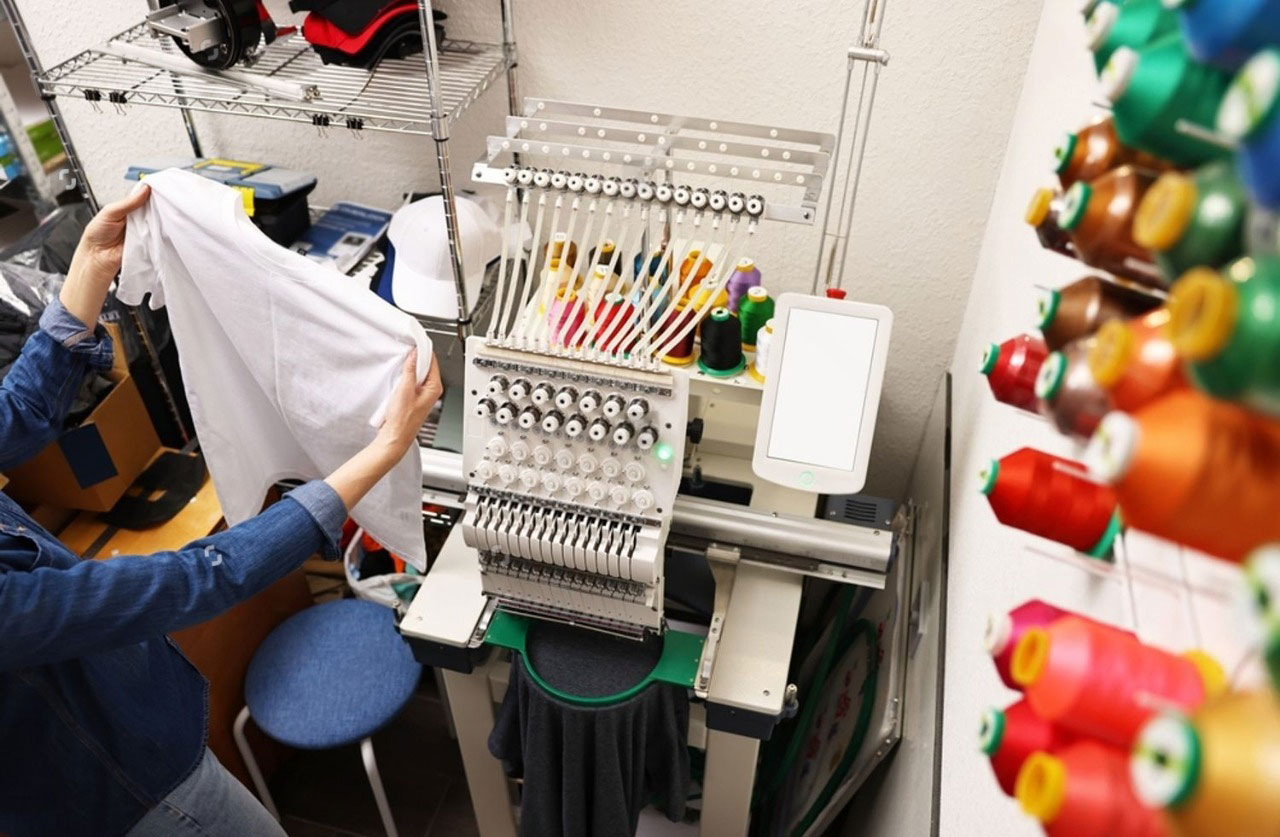
You have a brilliant design in mind and an embroidery machine ready to bring it to life. But between that idea and a perfect stitched piece lies a step that feels intimidating: creating the digital file that tells your machine what to do. This process, called Digitizing Embroidery, has a reputation for being complex and technical, reserved only for experts with expensive software. That outdated notion stops many creators in their tracks. The truth is, with today’s tools and a clear understanding of the core principles, digitizing is more accessible than ever. This modern guide strips away the mystery.
We’ll walk you through the essential concepts, the straightforward workflow, and the smart shortcuts that make digitizing embroidery an achievable—and even enjoyable—part of your creative process.
What is Digitizing, Really? (And What It Isn’t)
Let’s start by demystifying the term. At its heart, digitizing embroidery is translation. You are translating a visual image (like a JPEG or PNG) into a language your embroidery machine understands: a sequence of precise coordinates and commands.
It IS:
-
Creating a Stitch Blueprint: You are drawing a detailed map for the needle to follow.
-
A Blend of Art and Engineering: You make creative choices about how a design will look in thread, while also solving technical problems like fabric stability.
-
A Learnable Skill: With a logical approach and practice, you can become proficient.
It is NOT:
-
Magic or Auto-Pilot: While software helps, it requires your input and decisions.
-
Simply “Tracing” an Image: Auto-trace functions exist but create poor results. Good digitizing involves manual planning and structure.
-
Only for Professionals: Hobbyists and small business owners successfully digitize their own designs every day.
The goal is to shift your mindset from “This is impossible” to “This is a step-by-step process I can follow.”
Your Modern Toolkit: What You Actually Need
Gone are the days of needing a $10,000 software suite to start. Here’s your accessible, modern toolkit:
1. Digitizing Software (Your Digital Workshop):
This is your primary tool. The great news is you have excellent options at various price points.
-
Beginner-Friendly & Affordable: Programs like Embrilliance StitchArtist (Level 1 is very approachable) or SewArt are designed with newcomers in mind. They offer the core tools without overwhelming complexity.
-
Subscription-Based Power: Hatch Embroidery by Wilcom offers a full-featured digitizer through a monthly or annual subscription. This is a fantastic way to access professional-grade software without a huge upfront cost, and it includes extensive tutorials.
-
Free Trials: Almost every major software company offers a 30-day free trial. Use these! They are the perfect risk-free way to test-drive a program and follow along with this guide.
2. A Capable Computer:
You don’t need a gaming PC, but a computer with a decent processor and at least 8GB of RAM will make the software run smoothly, preventing frustration.
3. Quality Source Artwork:
Start simple. Choose designs with clear shapes, bold lines, and minimal colors. A simple icon, monogram, or basic logo is a perfect first project. Avoid photographs or intricate watercolor-style art.
The Simplified, Modern Digitizing Workflow
Follow these steps in order. Think of it as building a house: you start with the foundation and work up.
Step 1: Prepare Your Artwork (Clean Up is Key)
Before you even open your digitizing software, prep your image in a simple program like Photoshop, GIMP, or even a free online editor.
-
Remove backgrounds and any unwanted tiny details.
-
Increase contrast to make edges pop.
-
Simplify complex areas.
-
Save as a PNG for a clean file. This 5-minute step saves an hour of headache later.
Step 2: Set Up Your Workspace & Import
Open your digitizing software and create a new file. Set your hoop size to match your machine and project. Import your cleaned-up PNG onto the digital canvas.
Step 3: Manual Outlining (The “Draw the Shapes” Phase)
This is the most important manual step. Do not rely on “Auto-Digitize.”
-
Use the software’s drawing tools (like the Bezier or Point tool) to manually create an outline around every single distinct shape in your design.
-
Create separate objects for each shape. If your design is a star inside a circle, make one outline object for the circle and a separate one for the star.
-
This gives you individual control over each element.
Step 4: Assign Stitch Types (The “Choose Your Materials” Phase)
Now, tell the software how to fill those outlines you just drew.
-
For Large Solid Areas: Select the shape and apply a Fill Stitch. In the properties, set a moderate density (start with 4.0-5.0 stitches per inch for most fabrics).
-
For Text and Borders: Apply a Satin Stitch. Adjust the width and stitch length.
-
For Fine Details: Use a Run Stitch.
Step 5: Add the Secret Weapon: Underlay
This is the step that separates wobbly amateur work from clean professional results. Underlay is a layer of stitching that goes down before the top stitches.
-
Select your fill stitch areas and apply underlay. A simple Edge Run or Zig-Zag underlay is a perfect start.
-
Why it’s non-negotiable: Underlay stabilizes the fabric to prevent puckering and gives the top stitches a nice, raised look.
Step 6: Check the Order & Save
Use your software’s object manager to ensure the stitch sequence makes sense (background shapes first, foreground details last). Then, generate the stitches and save your file in your machine’s format (like .PES for Brother or .DST for Tajima).
Step 7: The Golden Rule: Test Stitch!
Your work is not done on the computer. Always test your design on a scrap piece of the actual fabric you plan to use. This reveals how your digital plan works in the real world.
Modern Tips for Success
-
Start Simple, Then Scale: Master a basic shape before attempting a 10-color portrait.
-
Embrace Online Learning: Platforms like YouTube have thousands of free, specific tutorials for your exact software.
-
Lower Density for Knits: If stitching on t-shirts, reduce your fill stitch density to prevent puckering.
-
Iterate, Don’t Perfect: Your first test stitch might have issues. That’s okay! Note what went wrong (puckering? distorted shapes?), adjust those settings in the software, and test again. This is how you learn.
Conclusion
Digitizing Embroidery is a skill unlocked by modern tools and a methodical approach, not innate genius. By breaking the process into manageable steps—preparing your art, manually outlining, intelligently assigning stitches, applying crucial underlay, and always testing—you remove the overwhelm and take control. This guide provides your roadmap. The software provides your tools. Your creativity provides the vision.
Embrace the learning curve as part of the craft. Each design you digitize builds your confidence and skill. Stop seeing digitizing as a barrier and start seeing it as the empowering bridge between your imagination and a tangible, stitched reality. Your next perfect stitch-out is just a few logical steps away.






Leave a Reply